Want to know how many devices are connected to your Wi-Fi? The most reliable way is to open your router’s administration panel and check its connected-device list. Depending on your router, this section may be called Connected Devices, Client List, Online Devices, Wireless Clients, or Device Management.
The list can help you identify phones, laptops, smart TVs, security cameras and other devices using your home network. You can also investigate unfamiliar connections and decide whether your Wi-Fi password needs changing.
Important: We provides instructions for checking your own network. This page does not automatically scan your router or access information about connected devices.
How to Check Devices Connected to Your Wi-Fi
Most home routers have a management interface that displays connected devices. You need access to your own router and its administrator login details.
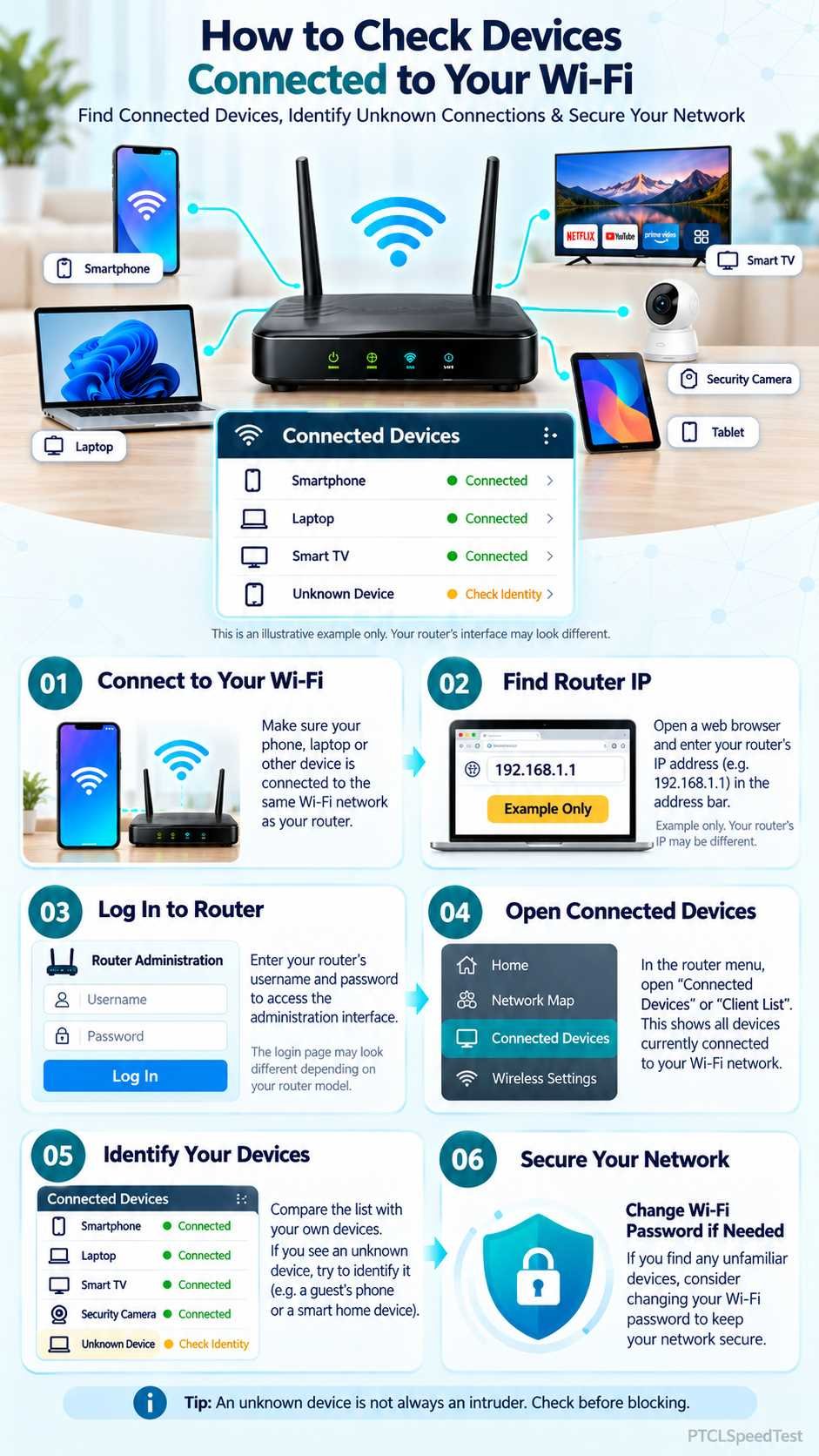
Follow these steps.
Step 1: Connect to Your Router
Connect your phone or computer to the Wi-Fi network you want to inspect. Alternatively, connect a laptop or desktop computer directly to the router using an Ethernet cable.
Make sure you are connected to the correct home network, especially if your house has multiple routers or Wi-Fi extenders.
Step 2: Find Your Router’s IP Address
Open a web browser and enter your router’s local administration address.
Common examples include:
192.168.1.1192.168.0.1192.168.3.1
These are examples, not universal login addresses. Your actual router may use something different.
To find the gateway address on Windows:
- Press
Windows + R, typecmd, and press Enter. - Type
ipconfigand press Enter. - Find the active Wi-Fi or Ethernet connection.
- Look for Default Gateway.
The displayed IPv4 gateway address is usually the local router address to try. In homes with multiple networking devices, it may identify a downstream router instead of the main ISP device.
On smartphones, look in the connected Wi-Fi network’s details for a field such as Router or Gateway. The wording and location vary by phone model.
You can also check the router’s label, setup documentation or manufacturer app for its management address.
Step 3: Log In to Router Settings
Enter the router address in your browser’s address bar.
When the login page appears, enter the administrator credentials provided or configured for your router.
Your router administrator password may be different from your Wi-Fi password. If you do not know it, consult the router documentation or your internet service provider.
Never share your administrator password with someone offering to check your Wi-Fi devices remotely. Also, do not factory-reset an ISP-provided router simply because you cannot access its login panel. A reset may erase important connection settings.
Step 4: Open the Connected Devices List
After logging in, look for a section named:
- Connected Devices
- Online Devices
- Device List
- Wireless Clients
- Network Map
- LAN Status
Depending on the router, you may see separate lists for wired devices, wireless devices, or previously connected devices.
Select the current online-device list if your router provides one.
Step 5: Review the Devices
Check the number of connections and compare the entries with equipment in your home.
For example, a household might have several mobile phones, a laptop, a smart TV, a security camera and a printer connected.
Remember that a device can use your network without someone actively browsing the internet. Smart TVs, cameras and other connected appliances may remain connected while idle.
Refresh the device list if the router provides that option.
How to Check Connected Devices on PTCL, TP-Link, Huawei and ZTE Routers
Router manufacturers use different menus. Even two models from the same brand may organize device information differently.
PTCL Broadband and Flash Fiber Routers
PTCL broadband and fiber customers may use different router or optical network terminal (ONT) models. An ONT is the device that terminates the fiber connection and may also provide Wi-Fi.
To inspect connected devices:
- Check the brand and model printed on your router or ONT.
- Connect a device to its network.
- Open the administration address provided for that model.
- Sign in with your authorized administrator credentials.
- Search for WLAN, LAN, User Device, Connected Clients or a similar device-status section.
- Review the available online-device entries.
The exact menu depends on the equipment and firmware. Some ISP-managed devices may restrict administrator functions.
If you cannot find the connected-device section, refer to your router’s manual or ask PTCL support for instructions specific to your model.
TP-Link Routers
Supported TP-Link routers can display clients through the TP-Link Tether app or their web management interface.
Using the Tether app:
- Connect your phone to the TP-Link Wi-Fi network.
- Open the TP-Link Tether app.
- Select your compatible router.
- Open the Clients section.
- Review the connected devices.
On supported web interfaces, the Network Map provides a device overview. Some models also offer a DHCP Client List, although that list may contain previously assigned addresses rather than only currently active connections.
TP-Link features and menu paths vary by model and firmware version.
Huawei Routers
Certain Huawei consumer routers support device management through the Huawei AI Life app.
For a compatible model, select the router in the app and open Connected devices.
Supported Huawei browser interfaces may also include a Manage Device page with device names, connection details and access controls.
Not every Huawei-branded ONT supplied by an ISP supports the same app or menus. For a PTCL-provided Huawei device, consult its specific model documentation.
ZTE and Other Routers
For ZTE and other router brands, identify your exact device model before following any tutorial.
Check the administration dashboard for WLAN status, associated stations, LAN clients, or connected devices. These are common types of labels, not guaranteed menu names on every model.
Avoid changing WAN, fiber, VLAN or other ISP connection settings while looking for the device list.
How to Identify Unknown Devices on Your Wi-Fi
Seeing an unfamiliar name does not necessarily mean someone has accessed your Wi-Fi without permission.
Some devices appear under generic names. Others may use temporary or private network identifiers.
Start by understanding what the router displays.
| Router information | What it means |
|---|---|
| Device Name | A hostname or label that may help identify the device |
| IP Address | A network address assigned to the device, such as 192.168.1.5 |
| MAC Address | A network-interface identifier; some devices use private or randomized addresses |
| Connection Type | Whether the device uses Wi-Fi or a wired connection, if the router reports it |
| Online Status | Whether the router currently considers the device connected |
A local IP address alone does not tell you who owns the device.
Compare Devices One at a Time
If a device appears unfamiliar, use this approach:
- Make a list of the phones, computers, TVs and other connected equipment in your home.
- Compare their names with the router’s client list.
- For a device you control, temporarily disconnect its Wi-Fi.
- Refresh the router’s online-device list.
- Check whether the corresponding entry disappears or changes status.
- Reconnect the device and confirm the entry returns.
This method works best when the router accurately distinguishes active devices from historical entries.
Do not unplug important equipment such as security cameras or medical devices without considering the consequences.
Understand Private MAC Addresses
Modern phones and computers may use a private or randomized MAC address to reduce tracking across Wi-Fi networks.
For example, an iPhone may present a private Wi-Fi address instead of its permanent hardware address. That can make a legitimate household device harder to recognize.
A changed MAC address does not automatically indicate a security problem.
For most home networks, keep privacy features enabled and identify devices through a combination of names, connection activity and settings rather than relying only on MAC addresses.
What to Do If an Unknown Device Is Connected
Once you have checked your household devices, an entry may still remain unidentified.
Take the following precautions.
Change Your Wi-Fi Password
If you reasonably suspect unauthorized access, change the password for the affected wireless network.
Use a long, unique password that is not reused on other accounts or networks.
After changing it, reconnect your authorized phones, computers, TVs and other equipment using the new password.
If your router broadcasts separate guest or main Wi-Fi networks, review their passwords and settings as well.
Review Device Blocking Options
Some routers let administrators block a client or restrict its internet access.
Only use these controls after checking the device’s identity. Blocking your own phone, computer, extender or another essential device can interrupt access.
A blocklist may help control access, but it should not replace a strong Wi-Fi password and modern encryption.
Check the Router Administrator Password
The router administrator account controls network settings, including Wi-Fi configuration.
Protect it with a separate, strong password. If you suspect that someone obtained administrator access, review the router’s configuration and change the relevant credentials.
If the device is managed by your ISP, contact the provider before changing settings you do not understand.
Why Your Router Shows Extra or Missing Devices
The number displayed on your router may not always match the number of devices you can immediately identify.
Offline Devices May Remain Listed
Some routers retain records of devices that previously connected or received a local IP address.
Check whether the screen is showing currently connected clients, DHCP leases, saved devices or historical connections.
A device appearing in a saved list is not proof that it is currently using your connection.
Some Devices May Be Sleeping
Phones, laptops and smart equipment can enter power-saving modes. Their connection status may change while they are asleep.
A device may disappear temporarily or remain listed depending on the router’s software.
Wi-Fi Extenders and Mesh Networks Can Change What You See
If your home uses multiple access points, a repeater or a mesh network, different management screens may display different client information.
A secondary router could also maintain its own separate client list.
Check the main router and any additional networking equipment you manage when the device count appears incomplete.
Private Addresses Can Make Devices Look Different
A device using MAC address randomization may appear under a different identifier after network changes.
Compare its actual connection settings before assuming that a second entry represents an intruder.
Can Too Many Connected Devices Slow Down Wi-Fi?
Yes, connected devices can affect performance, particularly when several are actively downloading, streaming, gaming or uploading data.
However, the number of connected devices alone does not determine internet speed.
For example, ten mostly idle devices may place less demand on a connection than two devices simultaneously transferring large files.
Performance depends on several factors, including:
- Your internet connection’s available bandwidth.
- How much data connected devices are transferring.
- Wi-Fi signal strength and interference.
- Router capacity and network configuration.
- Whether devices share the same wireless channel or access point.
A slow internet connection is not always caused by an unauthorized Wi-Fi user.
To investigate, pause large downloads and unnecessary streams, then compare performance on one device. If possible, test using Ethernet to help distinguish a Wi-Fi issue from a wider internet connection problem.
A speed test measures connection performance to a particular test endpoint. It does not identify everyone using your network.
What If You Cannot Open the Router Device List?
If the login page or connected-device screen does not appear, check the basics before changing router settings.
Router page does not load: Confirm that you are connected to the correct local network. Recheck the gateway address rather than assuming it is 192.168.1.1. If using a mobile phone, ensure it has not switched to mobile data.
Administrator login fails: Confirm that you are using the router’s administrator credentials, not automatically substituting the Wi-Fi password. Consult the manufacturer or ISP if access is restricted.
Device list is empty: Check whether you are viewing wired clients, wireless clients or an offline-device screen. Refresh the interface and confirm that at least one of your devices is connected to the router being managed.
The device count seems incorrect: Check for additional access points, guest networks, private MAC addresses and previously connected devices.
Avoid experimenting with advanced ISP provisioning settings or performing a factory reset just to view connected clients.
How to Keep Your Wi-Fi Network Secure
Checking your client list occasionally is useful, but preventing unauthorized access matters more.
Use WPA3-Personal encryption when supported by your router and devices, or WPA2-Personal when WPA3 is unavailable. Avoid older WEP and WPA security modes.
Keep your Wi-Fi and administrator passwords secure and separate. Review available router firmware updates using your manufacturer or ISP’s instructions. Disable unnecessary remote administration features, and consider a separate guest network for visitors when your router supports it.
If you discover a connection you cannot identify, investigate it before taking action. Where unauthorized access is reasonably suspected, secure your Wi-Fi credentials and review the network again.
Final Check: Who Is Using Your Wi-Fi?
To check devices connected to your Wi-Fi, open your router’s management page, find the online-client list and compare the entries with your household devices.
Pay attention to unfamiliar names, but do not assume every unknown entry belongs to an intruder. Private MAC addresses, historical records and additional networking equipment can make device lists confusing.
If you identify a genuine security concern, update your wireless password and review the router’s security settings.
The device list is your best starting point for understanding who is connected to your home network. For ongoing connection-quality issues, check the network’s activity and performance separately.
Sources and Further Reading
- TP-Link: How to Check Who Is Connected to Your Router
- Huawei: How to Manage Connected Devices
- Microsoft: Fix Wi-Fi Connection Issues in Windows
- Apple: Use Private Wi-Fi Addresses
- FTC: How to Secure Your Home Wi-Fi Network