To open your router’s login page, connect your phone or computer to the router’s Wi-Fi or Ethernet network, enter its local IP address in a web browser, and sign in with your router’s administrator credentials.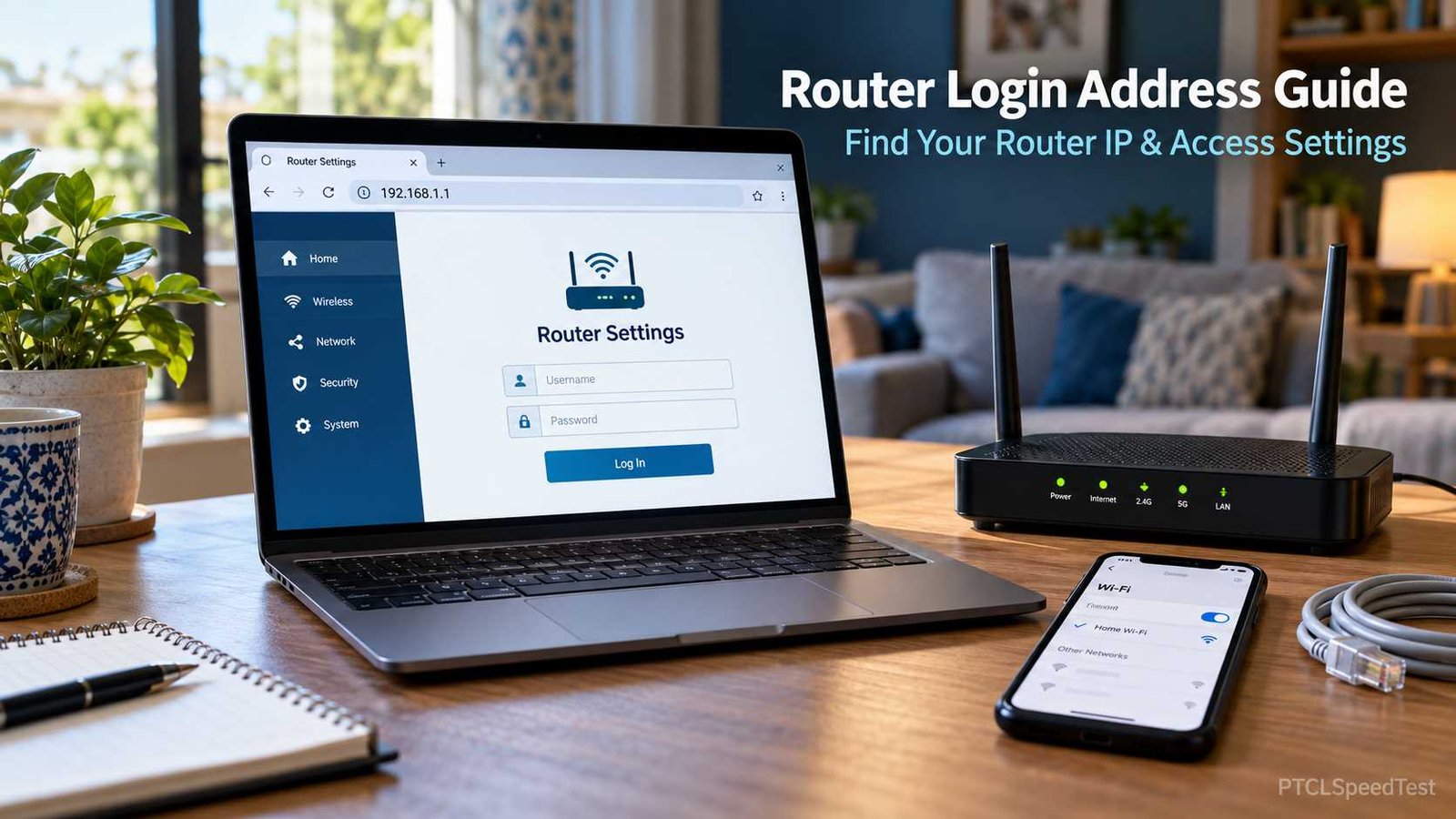
The most common router login addresses are 192.168.1.1 and 192.168.0.1. However, the correct address depends on your router model and network configuration.
If neither address works, you can find your current router IP through your device’s network settings. This guide explains how to do that on Windows, Android, iPhone, and Mac, including common PTCL router setups in Pakistan.
What Is a Router Login Address?
A router login address is the local IP address used to open your router’s administration interface. This is where you can view or manage supported settings, such as:
- Wi-Fi network name and password
- Wireless security settings
- Connected device information
- Firmware updates
- Guest Wi-Fi settings
- Network configuration
The address usually belongs to your router’s local area network (LAN). It is different from the public IP address your internet connection uses to communicate with websites.
For most home networks, the router’s IP address is also the default gateway, which is the device that forwards traffic from your local network toward other networks.
However, when multiple routers or access points are installed, the default gateway may not be the device whose settings you want to open.
Common Router Login IP Addresses
Different manufacturers use different default management addresses.
| Router brand or type | Common login IP | Management hostname |
|---|---|---|
| TP-Link wireless router | 192.168.0.1 or 192.168.1.1 |
tplinkwifi.net |
| TP-Link DSL modem router | Often 192.168.1.1 |
tplinkmodem.net on supported models |
| TP-Link Deco | 192.168.68.1 |
tplinkdeco.net on supported models |
| ASUS router | 192.168.50.1 |
asusrouter.com |
| NETGEAR router | 192.168.1.1 |
routerlogin.net |
| D-Link router | 192.168.0.1 |
dlinkrouter.local |
| PTCL modem or fiber ONT | Depends on the device | Check the model documentation |
These are commonly documented defaults, not guaranteed addresses. A router’s address can change after configuration, and some management hostnames only work while connected to that device’s network.
Tip: If you know your router model, check the manufacturer’s label or support documentation before trying multiple addresses.
How to Find Your Router Login Address
The most reliable starting point is to check the default gateway assigned to your connected device.
Find Your Router IP Address on Windows 10 or 11
Windows includes a built-in command called ipconfig that displays your network configuration.
Follow these steps:
- Connect your computer to your home Wi-Fi or router using an Ethernet cable.
- Press Windows + R to open the Run dialog.
- Type
cmdand press Enter. - Enter the following command:
ipconfig - Find the Wi-Fi or Ethernet adapter you are currently using.
- Locate Default Gateway under that adapter.
For example, you might see:
Default Gateway . . . : 192.168.1.1
In this example, 192.168.1.1 is the gateway address. Enter http://192.168.1.1 in your browser to check whether it opens your router’s management page.
The address above is illustrative. Your own network may display something different.
If several network adapters are listed, make sure you read the address for your active connection.
Find Your Router Login IP on Android
You can usually locate your router address without installing another application.
- Open Settings.
- Go to Wi-Fi, Network & Internet, or Connections, depending on your phone.
- Select the Wi-Fi network you are connected to.
- Open Network Details, Advanced, or IP Settings if necessary.
- Look for Gateway or Router.
Copy the displayed address and enter it into your phone’s browser.
Samsung, Xiaomi, OPPO, Vivo, and other Android manufacturers organize network settings differently. The exact menu names can also change between Android versions.
If the gateway information is not visible, check the manufacturer’s instructions for your phone model.
Find Your Router IP on iPhone or iPad
Apple devices display the current gateway address in Wi-Fi settings.
- Open Settings.
- Tap Wi-Fi.
- Find the network you are connected to.
- Tap the information icon beside its name.
- Look for the Router field.
The IP address shown beside Router is the gateway for that Wi-Fi connection.
Enter the address in Safari to attempt to open its administration page.
Find Your Router IP on Mac
On recent versions of macOS:
- Open the Apple menu.
- Select System Settings.
- Click Wi-Fi or Network.
- Open Details for your active network connection.
- Select TCP/IP.
- Find the address labeled Router.
This is the gateway address currently configured for your Mac.
On older macOS versions, the same information may appear under System Preferences, Network, Advanced, and TCP/IP.
How to Open Your Router Admin Page
Once you have identified your router’s local IP address, you can try accessing its settings.
Step 1: Connect to Your Router
Connect your computer or phone to the router through Wi-Fi or Ethernet.
For initial setup or changes to wireless settings, Ethernet is preferable when available because changing the Wi-Fi configuration may disconnect a wireless device.
Step 2: Enter the Router Address
Open Chrome, Edge, Firefox, Safari, or another modern browser.
Enter your router’s IP address directly into the browser’s address bar.
For example:
http://192.168.1.1
Alternatively, use the management address specified in your router’s official instructions. Some models support or require HTTPS.
Do not enter the address into a search results page. You want to connect to a local device, not search the internet for an address.
Step 3: Enter Administrator Credentials
If the management page opens, the router may request a username, password, or both.
Use the administrator credentials assigned to your router.
These may have been:
- Printed on the device label
- Created during initial setup
- Provided by your internet service provider
- Changed by the person who configured the router
The router administration password is not necessarily the same as your Wi-Fi password.
Avoid repeatedly guessing passwords. Some devices temporarily block further attempts after multiple incorrect logins.
Step 4: Verify the Admin Dashboard
After signing in, you should see a settings interface associated with your router manufacturer or device model.
Depending on the router, it may contain menus for wireless settings, connected devices, security, network information, and firmware.
If the page displays an unexpected manufacturer or an unfamiliar login screen, do not enter your credentials until you have confirmed that you are connected to the correct device.
PTCL Router Login Address in Pakistan
PTCL broadband customers may have different modem or router configurations depending on their connection and installed equipment.
A DSL connection may use a modem router, while a fiber connection may use an Optical Network Terminal (ONT). An ONT is equipment that terminates the fiber connection and may also provide routing and Wi-Fi functions.
Some homes also use an additional TP-Link, ASUS, or other wireless router connected to the main PTCL device.
There is no single login address that can safely be assumed for every PTCL installation.
How to Find Your PTCL Router Login Address
Start by checking the installed equipment:
- Find the manufacturer name and model number on the router or ONT.
- Check the label for a local management IP address or login instructions.
- Connect your phone or computer to the device’s network.
- Find the default gateway using the instructions in this guide.
- Enter the address in your browser.
- Sign in using authorized administrator credentials.
If you use a separate Wi-Fi router, its management IP may be different from the main PTCL ONT’s address.
Also, some ISP-managed devices have restricted administration settings. Accessing a basic Wi-Fi settings page does not necessarily give you permission or access to every network configuration option.
Important: Avoid changing PTCL connection credentials, WAN settings, VLAN configuration, or other ISP provisioning details unless you have accurate model-specific instructions. Incorrect changes can disconnect your broadband, telephone, or television service.
If you cannot identify the correct login credentials, contact PTCL through its official support channels rather than relying on random default passwords found online.
Router Login Page Not Opening? Try These Fixes
When a router administration page does not open, the problem is often an incorrect address, a connection issue, or a browser configuration problem.
Work through these checks in order.
1. Check the Wi-Fi or Ethernet Connection
Confirm that your device is connected to the intended router or local network.
For a phone, connecting through mobile data instead of your home Wi-Fi usually will not provide access to the router’s local management interface.
If the phone keeps switching networks, temporarily disconnect mobile data while troubleshooting the local connection.
2. Confirm the Correct IP Address
Do not assume that every router uses 192.168.1.1.
Check the actual Default Gateway or Router field in your device’s settings.
If your router operates as a secondary access point, that gateway may lead to the main router instead. In that situation, consult the access point’s documentation or its assigned management address.
3. Enter the Address Correctly
A common mistake is entering an IP address into a search engine or using an incorrect number.
For example:
192.168.1.1and192.168.0.1are different addresses.192.168.1.1and192.168.1.2refer to different local IP addresses.
You can explicitly enter http:// or https:// according to the router manufacturer’s instructions.
If the browser displays a security certificate warning, confirm the address and device identity. Do not ignore unexpected security warnings or enter sensitive credentials into a page you cannot identify.
4. Try Another Browser
An outdated browser, cached page, or browser extension may interfere with a router’s management interface.
Try a private browsing window or another current browser.
This helps determine whether the issue is related to your original browser.
5. Temporarily Disconnect Your VPN
A virtual private network (VPN) may change how your device routes traffic.
Some VPN configurations prevent access to local network addresses.
If you are using a VPN, disconnect it temporarily and retry the router address. Reconnect after checking whether the VPN caused the problem.
6. Restart Your Router Normally
If the local management page remains unresponsive, you can try a normal restart when it is safe to interrupt the connection.
Use the manufacturer’s supported restart option or power button, if available.
Wait for the device to finish starting, reconnect, and retry.
Do not confuse restarting with factory resetting. A factory reset can erase saved settings and may require complete reconfiguration.
Router Login Troubleshooting Table
| Problem | Possible reason | What to try |
|---|---|---|
192.168.1.1 does not open |
Wrong router address | Check the current default gateway |
| Browser shows search results | Address entered as search | Type the IP directly into the address bar |
| Router page loads, but login fails | Incorrect admin credentials | Check authorized credentials or recovery instructions |
| Login page opens for another device | Multiple routers or access points | Identify the intended device’s management address |
| Page times out | Local connection or management service issue | Check the connection and restart normally if appropriate |
| Page opens but settings are limited | Restricted account or ISP-managed equipment | Consult the device owner or ISP |
| Browser shows a security warning | Certificate or connection security issue | Verify the device and follow manufacturer guidance |
The specific solution depends on the error displayed and your network setup.
Forgot Your Router Admin Password?
If the router login page opens but does not accept your password, the router address itself may be correct. The problem is authentication.
First, check whether your router uses a password created during initial setup. Some devices may also have model-specific credentials printed on their labels.
If you previously changed the administrator password, use the manufacturer’s supported recovery process, where available.
Avoid online lists of supposedly universal router passwords. These may not apply to your device, and entering credentials on an unfamiliar website can put your account information at risk.
Should You Factory Reset the Router?
A factory reset should be a last resort.
Depending on the device, it can erase Wi-Fi settings, administrator credentials, internet connection details, and other configuration information.
For a PTCL-supplied ONT or another ISP-managed router, ask the service provider before resetting the equipment. Certain settings may be necessary to restore the service.
How to Keep Your Router Login Secure
Your router administration page controls important settings for your home network. Protecting access to it matters.
Use a strong, unique administrator password when your router supports changing it. Do not share that password publicly or reuse it across unrelated accounts.
Keep the router’s firmware updated through the manufacturer’s official instructions or an ISP-managed update process.
Use WPA3-Personal Wi-Fi security where supported, or an appropriate WPA2/WPA3 compatible configuration. Avoid disabling Wi-Fi encryption, firewall protection, or other security controls simply to troubleshoot the login page.
Keep remote administration disabled unless you have a specific, secure reason to enable it. For routine home administration, local access is generally preferable.
Before making substantial changes, save an authorized configuration backup if your router supports it.
Does Router Login Work Without Internet?
Yes, many routers allow you to access their local administration page even when the internet connection is unavailable.
The router’s management interface is usually hosted by the router itself. Your phone or computer still needs a functioning local connection to the router, but an active external internet connection is not always required.
This distinction can help during troubleshooting:
- If you can access the router dashboard but websites are not loading, the local router connection may be working while internet access is failing.
- If you cannot open the dashboard, investigate the local connection, management address, and router status first.
Being able to access the dashboard does not prove that every part of your broadband connection is working.
Router IP Address vs. Wi-Fi Password vs. Admin Password
These three items serve different purposes.
| Item | Purpose |
|---|---|
| Router IP address | Identifies a device on the local network |
| Wi-Fi password | Allows a device to join a protected wireless network |
| Administrator password | Protects access to router management settings |
For example, knowing the IP address 192.168.1.1 does not automatically allow you to modify a router’s settings.
You still need permission and the correct administrator credentials.
Have You Found the Correct Router Address?
For most home users, finding the right router login address takes only a few checks.
Connect to your own router network, identify the current gateway address, enter it directly in a browser, and confirm that the expected manufacturer login page appears.
If the page is unavailable, work through the connection and browser checks before considering more disruptive changes.
For PTCL-supplied equipment, use model-specific instructions and request official support when the router is managed or its settings are unclear.
PTCLSpeedTest is an independent internet connectivity information website. It is not an official PTCL router administration portal and does not automatically identify or access your router.