If your Wi-Fi is connected but the internet is not working, websites are taking too long to load, or your connection keeps dropping, restarting your router is a useful first troubleshooting step.
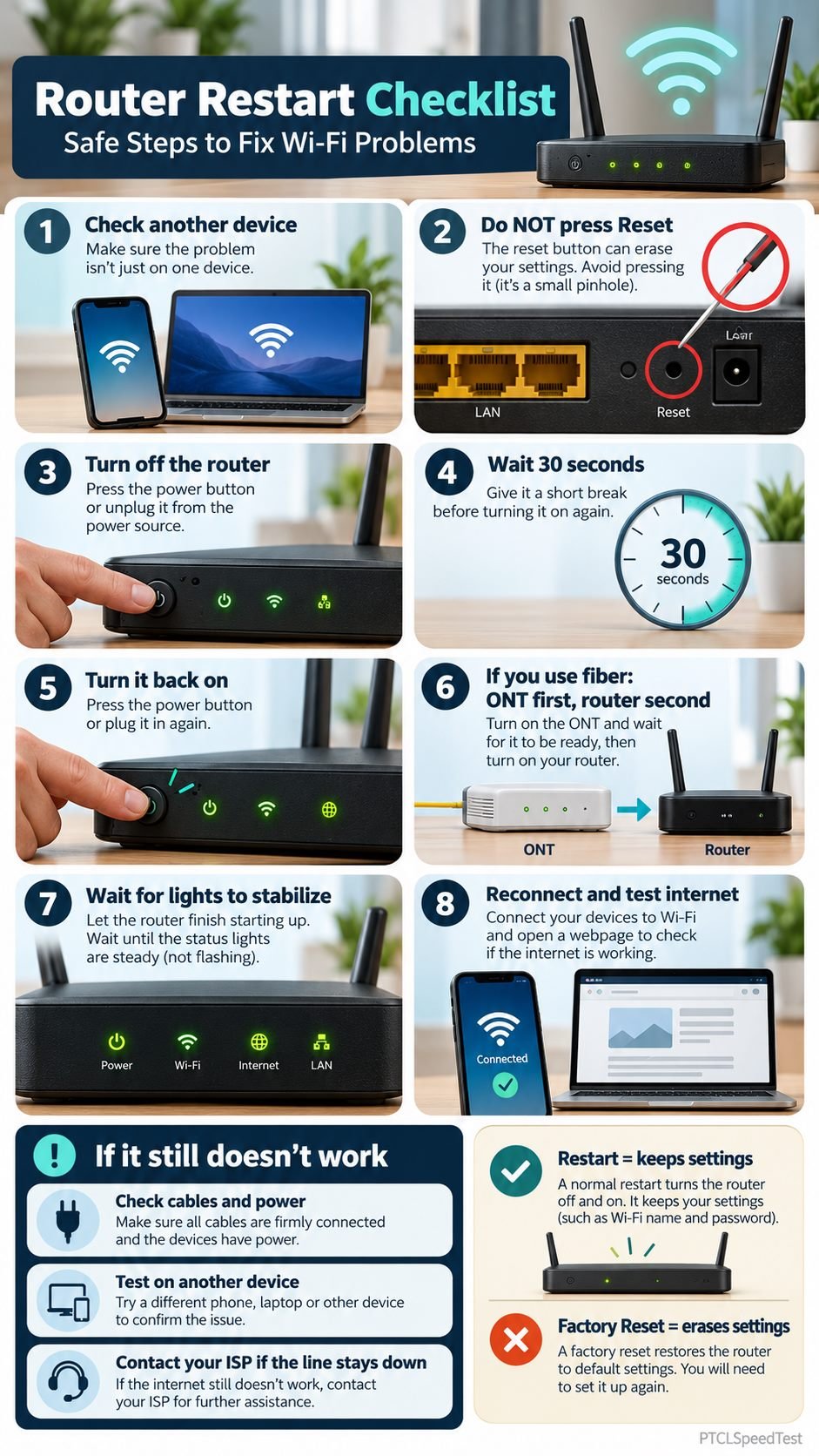
To restart a router safely, switch it off, wait about 30 seconds, and turn it back on. Allow it to finish starting before checking the internet connection. The exact procedure may vary by router model and network setup.
A normal restart, also called a reboot or power cycle, does not erase your Wi-Fi name, password, or other saved settings.
Use this checklist for home Wi-Fi routers, PTCL DSL connections, fiber ONTs, and other common home internet setups in Pakistan.
Before You Restart Your Router
A few checks can save you from restarting equipment unnecessarily.
- Check another device. If your phone cannot open websites, try a laptop or another phone connected to the same Wi-Fi.
- Check whether Wi-Fi is available. If your network name appears but websites do not load, the wireless connection may be working while internet access is unavailable.
- Inspect the status lights. Look for Power, Internet, DSL, PON, LOS, or WLAN indicators, depending on your equipment. Note any unusual lights.
- Check the power and Ethernet connections. Make sure plugs are secure and no cable is visibly damaged.
- Identify your equipment. Some homes use one combined modem and router, while others have a separate fiber ONT and Wi-Fi router.
Avoid interrupting a firmware update. If your router indicates that an update is in progress, allow it to finish according to the manufacturer’s instructions.
Important: Do not press the small Reset button. A factory reset is different from a normal restart and can erase important connection settings.
Step-by-Step Router Restart Checklist
Follow these steps in order.
Step 1: Pause Internet Activities
Stop ongoing downloads, video meetings, online games, and file uploads before restarting.
A restart temporarily disconnects devices using your home network. If your telephone service runs through the same equipment, it may also become unavailable during the restart.
Step 2: Turn Off the Router
Locate the router’s Power button and switch it off.
If there is no power button, disconnect its power adapter using a safe, accessible connection. Use dry hands and do not handle damaged electrical plugs or cables.
Do not disconnect the optical fiber cable, open the device casing, or press Reset.
Step 3: Wait Before Turning It Back On
Wait approximately 30 seconds, unless your manufacturer’s instructions specify a different interval.
This allows the equipment to power down before restarting. It does not guarantee a fix for every connection problem.
Step 4: Restore Power
Turn the router on again or reconnect its power adapter.
If your home has a separate fiber ONT or modem, follow this sequence:
- Power on the ONT or modem first.
- Allow it to complete startup and establish its connection.
- Power on the separate Wi-Fi router.
- Reconnect any additional Wi-Fi extenders or mesh units after the main equipment is ready.
For an all-in-one modem-router or fiber ONT with built-in Wi-Fi, restart that single device rather than looking for separate equipment.
Step 5: Wait for Startup to Finish
Do not attempt to reconnect immediately.
Your router may take several minutes to establish an internet connection. Watch the indicator lights and allow them to settle.
The time required depends on the router, ONT, firmware, and internet connection. If the equipment is still starting, give it additional time before troubleshooting.
Step 6: Reconnect Your Phone or Computer
Open your device’s Wi-Fi settings and select your usual network name.
Your existing Wi-Fi password should still work after a normal restart.
If the network is missing, check whether the router’s wireless function has started and whether the Wi-Fi indicator is active.
Step 7: Test Internet Access
Open a few familiar websites or try another internet-connected application.
When testing on a smartphone, temporarily disable mobile data so that the phone does not silently use its cellular connection instead of Wi-Fi.
Check both a phone and a computer, if available.
Step 8: Check Connection Performance
Once normal browsing works, you can run an internet speed test to check download speed, upload speed, and latency.
For a more useful comparison, test under similar conditions before and after troubleshooting. Pause large downloads and avoid testing while several devices are streaming.
A speed test measures performance along a particular test path at that moment. It does not establish the health of every connection or prove that your ISP has a network-wide problem.
How to Know Whether the Router Restart Worked
A successful restart means more than seeing the router’s Power light turn on.
Look for these signs:
- Your normal Wi-Fi network appears again.
- Your phone or computer connects without requiring a new password.
- Websites load without switching to mobile data.
- Internet-dependent applications work.
- Connection-related indicator lights show their normal operating state.
A device may connect to Wi-Fi even when its router has no internet access. Test actual browsing rather than relying only on the Wi-Fi symbol.
Router Restarted but Internet Still Not Working?
If a restart does not help, use the following observations to decide what to check next.
| Problem after restart | What to check |
|---|---|
| Wi-Fi network is missing | Confirm the router is powered on and its wireless function is enabled. |
| Wi-Fi connects, but there is no internet | Check the modem or ONT status, upstream connection, and possible ISP outage. |
| Only one device has problems | Restart or troubleshoot that device before changing router settings. |
| Internet works near the router but not in another room | Consider weak Wi-Fi coverage or interference. |
| Fiber ONT displays an abnormal LOS indicator | Check the device manual and report a possible optical-line problem to the ISP. |
| DSL indicator does not reach its normal connection state | Check the accessible DSL connection and contact the ISP if synchronization does not return. |
Status-light labels and colors are not identical across manufacturers. For example, a blinking red LOS light on some fiber terminals can indicate a missing or weak optical signal. Always confirm its meaning for your exact model.
Do not unplug, bend sharply, or attempt to repair a fiber-optic cable yourself.
Router Restart vs Factory Reset
These actions are often confused, but their effects are very different.
| Router restart | Factory reset |
|---|---|
| Switches the equipment off and on | Restores factory-default configuration |
| Normally preserves Wi-Fi settings | Can erase Wi-Fi names and passwords |
| Used for basic troubleshooting | Used for specific configuration problems |
| Usually requires no reconfiguration | May require complete setup afterward |
A factory reset is not part of a routine router restart checklist.
It can erase ISP-specific settings, including configurations needed to restore internet service. This is particularly important for ISP-provided routers and fiber equipment that may use customized settings.
If restarting does not help, investigate the connection problem before considering a factory reset. For ISP-managed equipment, seek your provider’s instructions first.
Restarting a PTCL Router or Fiber ONT
PTCL customers may use DSL equipment, a fiber ONT with built-in Wi-Fi, or separate network devices.
The safe restart method depends on the actual model.
For a combined PTCL modem-router or fiber ONT, turn off the device using its Power button or power adapter, wait for the appropriate interval, and turn it back on.
For a separate ONT and Wi-Fi router, start the ONT first and then the router, unless your equipment documentation instructs otherwise.
After startup, check whether your connection is restored.
On equipment with optical indicators, a persistent LOS warning or an abnormal PON status may indicate that the fiber connection has not established properly. Repeated restarting will not repair a damaged fiber line.
NetTools Pakistan is an independent website and is not an official PTCL support service. For suspected line faults, account-related problems, or device configuration requirements, contact PTCL through its official customer support channels.
When Should You Restart Your Router?
Restarting can be worthwhile when several devices suddenly lose internet access, a router becomes temporarily unresponsive, or basic checks suggest a temporary connection problem.
There is no need to assume that every router must be restarted daily or weekly. If your internet is operating normally, unnecessary restarts only interrupt the connection.
A router that needs frequent restarts may have an unresolved problem involving its power adapter, overheating, firmware, settings, or internet service.
If it repeatedly disconnects, investigate the underlying cause instead of treating daily restarts as a permanent solution.
When to Contact Your Internet Provider
Contact your ISP when the router has completed startup but internet access remains unavailable across multiple devices, or when an abnormal line-status indicator persists.
Before contacting support, note:
- Your router or ONT brand and model.
- Whether you use DSL, fiber, or another connection type.
- The names and states of any unusual indicator lights.
- When the connection stopped working.
- Whether all connected devices are affected.
- Whether restarting temporarily restores service.
These details help distinguish a home Wi-Fi problem from a modem, ONT, or internet-line issue.
Do not share router administrator passwords, Wi-Fi passwords, or other sensitive credentials with unverified support contacts.
Final Connection Check
After completing the restart, confirm that your devices reconnect, websites load, and your connection works reliably for normal activities.
If browsing works but speeds remain poor, compare performance near the router with performance farther away. An Ethernet test, where available, can also help separate Wi-Fi-related limitations from broader connectivity issues.
If your internet is still unavailable, record the observations and contact your ISP rather than repeatedly resetting the equipment.
A router restart is a useful troubleshooting step, but the correct next action depends on what the connection is doing afterward.
Manufacturer Guidance and References
The following resources explain router restart procedures, factory resets, and connection-status indicators:
- NETGEAR: How to Power Cycle or Reboot Your Router
- Google: Restart Your Modem, Router, and Wi-Fi Points
- TP-Link: Factory Reset vs Reboot
- TP-Link: GPON Terminal Indicator Lights
- TP-Link Pakistan: Wi-Fi Router Indicator Lights
These references provide general and manufacturer-specific guidance. Always follow the manual or provider instructions applicable to your exact equipment.