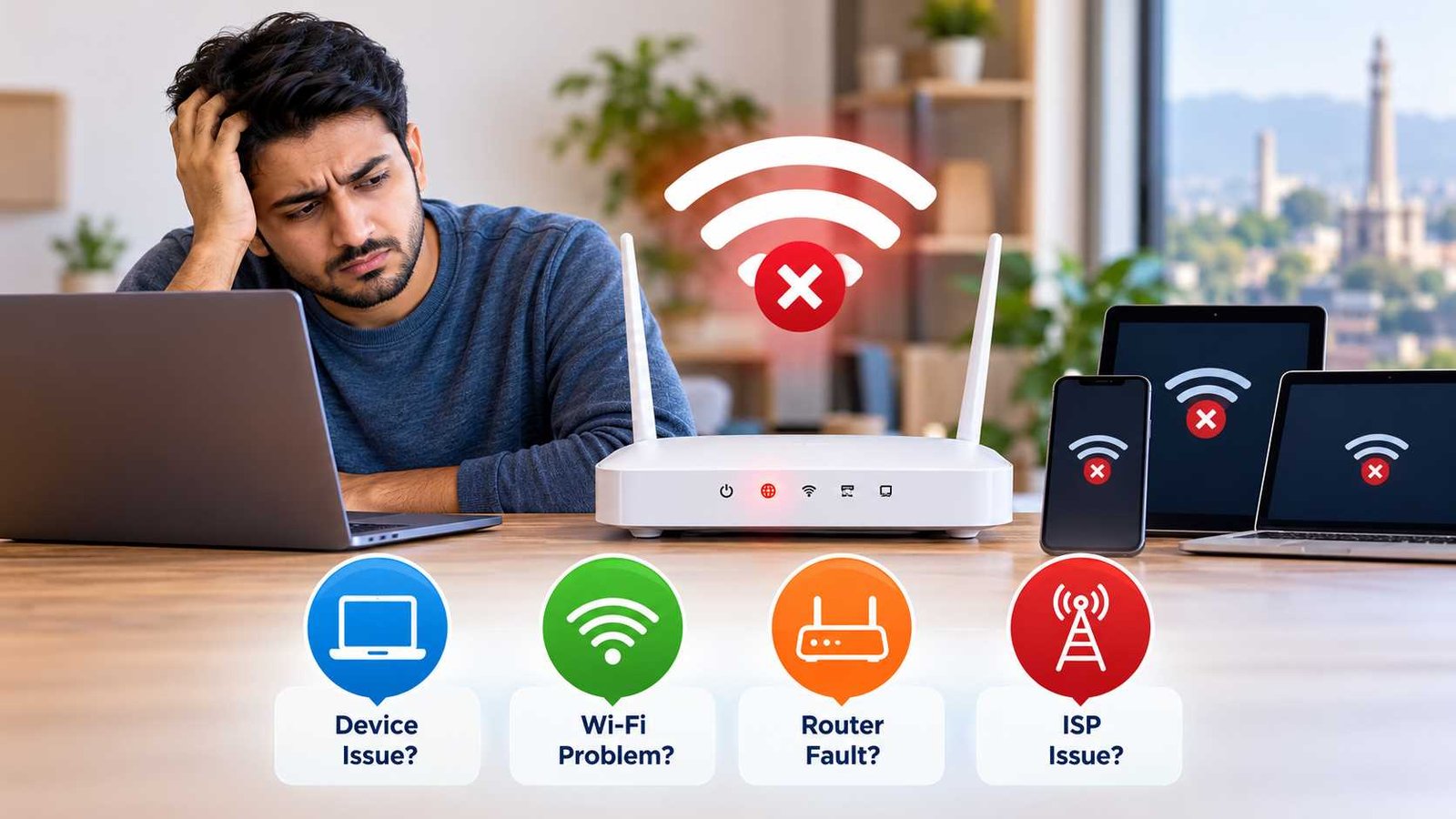
 If your internet keeps disconnecting, the first step is to find out whether the problem is with your device, Wi-Fi network, router or internet service provider (ISP). A connection that drops on one phone needs different troubleshooting from broadband that stops working on every device.
Start by checking whether other devices are affected and whether your Wi-Fi network remains visible during the interruption. These two observations often reveal where to investigate next.
This guide covers PTCL DSL, PTCL Flash Fiber, other fixed broadband connections and home Wi-Fi networks in Pakistan.
Diagnose Why Your Internet Keeps Disconnecting
Interactive diagnostic status: The automated troubleshooting questionnaire is under development. You can follow the manual checks below to identify the likely problem.
Step 1: Identify What Actually Disconnects
When the problem occurs, look at your device’s Wi-Fi indicator.
- Wi-Fi disconnects completely: Your phone or computer loses its connection to the wireless network. Investigate signal strength, interference and device or router Wi-Fi problems.
- Wi-Fi stays connected but internet stops: Your local wireless connection may be working, but the router or upstream internet connection could be unavailable.
- Only one website or app stops working: The problem may involve that service, its connection route, DNS resolution or application software rather than your entire broadband connection.
DNS (Domain Name System) converts website names into network addresses. DNS problems can make websites appear unavailable even when the underlying internet connection remains active.
Do not restart your router immediately if you can safely observe its status lights first. Those lights may provide useful evidence.
Step 2: Check Whether Other Devices Have the Same Problem
Connect another phone, laptop or computer to the same home network.
If one device keeps disconnecting while others work normally, start with that device. Its wireless adapter, saved network settings, operating system or location may be responsible.
If every device loses internet access at approximately the same time, investigate the router, modem, power supply and ISP connection.
For a more reliable comparison, check the devices during the same interruption rather than at different times.
Step 3: Compare Wi-Fi and Ethernet Connections
If you have a computer with an Ethernet port, connect it to a LAN port on your router using a working network cable.
Use both connections under comparable conditions.
| What happens | What it suggests |
|---|---|
| Ethernet works but Wi-Fi disconnects | Wireless coverage, interference or Wi-Fi configuration |
| Both Ethernet and Wi-Fi lose internet | Router, modem or upstream connection |
| Only one phone or laptop disconnects | Device-specific issue |
| The router restarts during outages | Possible power or hardware instability |
| Router stays powered but its line-status light changes | Possible broadband synchronization or optical-link problem |
These observations help narrow the problem. They do not prove that a particular component has failed.
On some ISP-managed connections, a direct computer-to-modem test requires special configuration. Do not bypass or reconfigure ISP equipment unless the provider or device documentation permits it.
What Your Troubleshooting Result Means
Device-Specific Connection Problem
If other devices work normally, troubleshoot the affected phone or computer first.
Check that airplane mode is disabled, the device has an adequate Wi-Fi signal and its software is updated. Restart the device and reconnect to your existing Wi-Fi network.
On Windows 11, open Settings > Network & internet and use the available network troubleshooting options. Microsoft’s support documentation also covers Wi-Fi adapters, power settings and network reset.
Avoid resetting all network settings as an initial step. A reset can remove saved configurations and affect VPN connections or other networking software.
If possible, test the same device on another trusted network. A device that repeatedly disconnects from different networks may need closer software or hardware investigation.
Weak or Unstable Wi-Fi Signal
If the internet works near your router but repeatedly disconnects in another room, wireless coverage may be the problem.
Walls, furniture, other wireless networks and electrical appliances can affect Wi-Fi performance. Router placement matters, particularly in multi-storey buildings or homes with thick walls.
Try moving closer to the router. If the connection becomes stable, consider improving router placement or wireless coverage.
Many routers offer both 2.4 GHz and 5 GHz Wi-Fi. The 2.4 GHz band generally offers better coverage through obstacles, while 5 GHz can provide higher performance over shorter distances, depending on the equipment and environment.
Test both bands if your router supports them. Neither is automatically the better option in every room.
Router or Modem Instability
A router that unexpectedly restarts can disconnect every device from the network.
Check whether the power indicator goes off and returns during the interruption. Also observe whether the router feels unusually hot, is placed in a poorly ventilated area or has a loose power connector.
Use the correct power adapter specified for your equipment. Do not substitute an adapter simply because its plug fits.
If the device repeatedly loses power or becomes excessively hot, contact the provider or equipment manufacturer for further assessment.
Internet Service or Line Problem
If several devices lose internet access together, including an Ethernet-connected computer, the fault may be outside your Wi-Fi network.
Possible causes include modem instability, damaged or loose accessible cables, broadband synchronization loss, ISP equipment faults or service interruptions.
An internet service fault is more likely when the problem persists across devices and local Wi-Fi remains connected. However, a router configuration issue can produce similar symptoms.
Record the status lights and interruption times before contacting your provider.
How to Fix Frequent Internet Disconnections
Work through these checks in order. Test the connection after each change so you know whether it made a difference.
1. Check the Cables and Power Supply
Inspect accessible Ethernet cables and power connectors. Make sure they are properly seated and not visibly damaged.
If a removable Ethernet cable appears faulty, try a compatible replacement.
Do not open your router, handle damaged electrical wiring or disconnect a fiber-optic connector. Fiber equipment and external broadband lines should be handled by an authorized technician.
2. Restart the Router Safely
If there is no obvious power or physical fault, a normal restart can help restore a connection that has become unresponsive.
Use the device’s normal restart option, if available, or follow the manufacturer’s power-cycle instructions. Allow it to finish reconnecting before testing again.
Remember that a restart temporarily interrupts internet access for other people using the network.
Do not press and hold the Reset button. A factory reset is different from a restart and may erase settings needed for your ISP connection.
If repeated restarts provide only temporary relief, continue investigating rather than restarting the router every time the internet drops.
3. Improve Router Placement
Place the Wi-Fi router in an open, ventilated location where its signal can reach the rooms you use most.
Avoid enclosed cabinets, major obstructions and placement immediately beside electrical appliances that may cause interference.
If the router is installed close to the incoming fiber or telephone line, do not pull or stretch those cables to move it.
Where permitted, a separate Wi-Fi access point or suitable mesh system can improve coverage without relocating ISP equipment.
4. Check Device Updates and Wi-Fi Settings
Install appropriate operating-system updates and manufacturer-approved network drivers.
If the problem started after a particular update, consult the device manufacturer’s support instructions rather than installing drivers from unknown websites.
Router firmware can also affect stability. Check the exact model and hardware revision before considering an update. With ISP-managed routers, ask the provider whether firmware changes are supported.
Keep your wireless security enabled. Disabling encryption or other important protections is not an appropriate general fix for unstable internet.
5. Test Whether the Router Is Reachable
Windows users can carry out an optional local network test.
Open Command Prompt and enter:
ipconfig
Find the Default Gateway address for your active network connection. This is often the local router address, but it varies by network.
Then enter:
ping YOUR-GATEWAY-ADDRESS
Replace YOUR-GATEWAY-ADDRESS with the address displayed on your computer.
A successful response indicates that your computer can communicate with that address using the test protocol. Repeated timeouts may indicate a local communication problem, although some routers restrict ping responses.
This test does not confirm that the internet service itself is working.
For a better diagnosis, compare the gateway test during normal operation and during an interruption. Do not interpret one failed ping as proof of a router fault.
PTCL DSL and Flash Fiber Disconnection Problems
PTCL users should identify their connection technology before interpreting modem indicators. DSL and fiber connections use different access equipment, and the same light label may not have the same meaning across models.
PTCL DSL Keeps Disconnecting
A DSL connection uses a telephone-line-based broadband connection.
If the DSL synchronization indicator goes off or repeatedly attempts to reconnect while the router stays powered, record the behaviour.
Check accessible indoor connections for obvious looseness or damage. Avoid changing line settings or rewiring telephone sockets yourself.
A recurring loss of DSL synchronization deserves an ISP line check, especially if Wi-Fi and wired devices are affected simultaneously.
If the DSL synchronization indicator remains stable but internet access disappears, the issue may instead involve the internet session, router or upstream network.
PTCL Flash Fiber Keeps Disconnecting
A fiber connection usually uses an optical network terminal (ONT), which may also provide Wi-Fi.
Depending on the model, indicators can include PON, LOS, Internet, WLAN and Power.
- Power: Observe whether the equipment remains powered throughout the interruption.
- PON or optical status: Record any unexpected change in the connection indicator.
- LOS: On many ONTs, an active loss-of-signal warning can indicate an optical-link problem.
- WLAN or Wi-Fi: Observe whether the wireless network itself disappears.
Check the exact ONT manual or ask PTCL to interpret its indicators. Do not assume that a particular colour or flashing pattern means the same thing on every device.
If an optical warning repeatedly appears, report it to PTCL rather than attempting to clean, bend, disconnect or repair the fiber cable.
What If Mobile Broadband Keeps Disconnecting?
If you use a SIM-based 4G or 5G connection, the troubleshooting approach is slightly different.
First establish whether the cellular signal disappears or the device keeps a signal while internet access stops.
Check whether the issue occurs only in one room or location. Building materials and distance from the serving network can affect indoor cellular coverage.
Also check your data allowance, SIM/account status and the provider’s service notifications. If a mobile hotspot is involved, test whether the cellular connection itself is stable before blaming the hotspot’s Wi-Fi.
Moving the device to another safe indoor location may help compare reception. Changing network modes or access-point settings without understanding your provider’s requirements can introduce additional problems.
When Should You Contact Your Internet Provider?
Contact your broadband provider when interruptions continue after basic checks, when multiple devices are affected or when the modem repeatedly loses its broadband connection.
Before contacting support, note:
- The approximate time and duration of each interruption.
- Whether one device or every device was affected.
- Whether Wi-Fi remained connected.
- Whether a wired connection was also interrupted.
- The modem or ONT model and relevant light behaviour.
- Any recent power interruption, installation work or equipment change.
These details help support staff distinguish a wireless problem from a router or line fault.
For PTCL connections, use the official PTCL customer support website and its available support or complaint-registration channels.
If a telecom service complaint remains unresolved, Pakistan Telecommunication Authority provides a Complaint Management System (CMS) for eligible consumer complaints. Use the official PTA complaint channel and retain your service provider’s complaint reference.
You do not need to share your Wi-Fi password, router administrator password or one-time verification codes with a third-party troubleshooting website.
How to Prevent Repeated Connection Interruptions
Some interruptions are outside a customer’s control, but basic maintenance can help prevent avoidable local problems.
Keep your modem and router well ventilated. Make sure accessible cables are secure and protected from physical damage. Use the correct power supply and follow the manufacturer’s update instructions.
Periodically compare the connection near the router with the connection in rooms where coverage is weak.
If your internet fails repeatedly at similar times, record the pattern. This may help you distinguish a recurring local issue from a problem requiring ISP investigation.
A speed test can help you assess performance while the connection is active, but a normal download-speed result does not rule out intermittent disconnections. Stability must be checked over time.
Final Troubleshooting Checklist
Before replacing a router or requesting an ISP technician, make sure you know the answers to these questions:
- Does the problem affect one device or every device?
- Does the Wi-Fi connection disappear, or does only internet access stop?
- Does Ethernet remain stable while Wi-Fi disconnects?
- Does the router restart or show an unusual status-light pattern?
- Does the problem continue after safe basic checks?
If these answers point toward your device or Wi-Fi, begin with local troubleshooting. If several wired and wireless devices lose internet together, or broadband status indicators repeatedly change, provide the recorded observations to your ISP.
The goal is not to guess which component is faulty. It is to collect enough evidence to choose the next useful step without making unnecessary or risky changes.